|
Zoom official support pages: |
Signing In to Zoom
To sign-in, simply go to https://discoveryed.zoom.us and click on "Sign In." Enter your account SSO email and password.
Obtain The Zoom App
- Mac : Download from Self Service
- Windows : Download from Company Portal.
To Start:
After you launch the app, you have two options. You can select "Join a Meeting" or "New Meeting" If you just want to join a meeting-in-progress click on "Join." If you would like to log in and start or schedule your own meeting, click on "Schedule"
Home Screen
Once you have logged in, you will see the main dialog box as shown below. The default tab is "Home".
Inside of Zoom Meetings, this is the Task Bar.
You can:
- View what type of account you are logged in with (Pro or Basic)
- Click on Start without video to start a meeting sharing your "desktop" or "application"
- Click on Start with video to start a video meeting
- Click on Schedule to set up a future meeting
- Click on Join to join a meeting that has already been started
- Click Share Screen to share your screen in a Zoom Room by entering in the sharing key or meeting ID
Inside of Zoom Meetings, this is the Task Bar.
Zoom Settings:
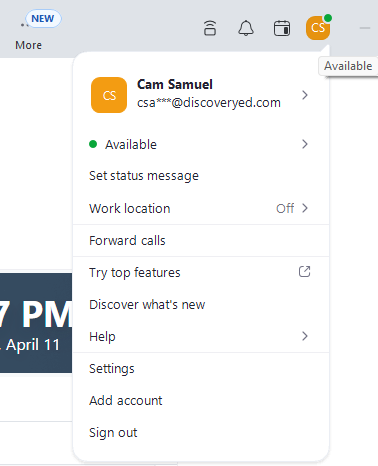
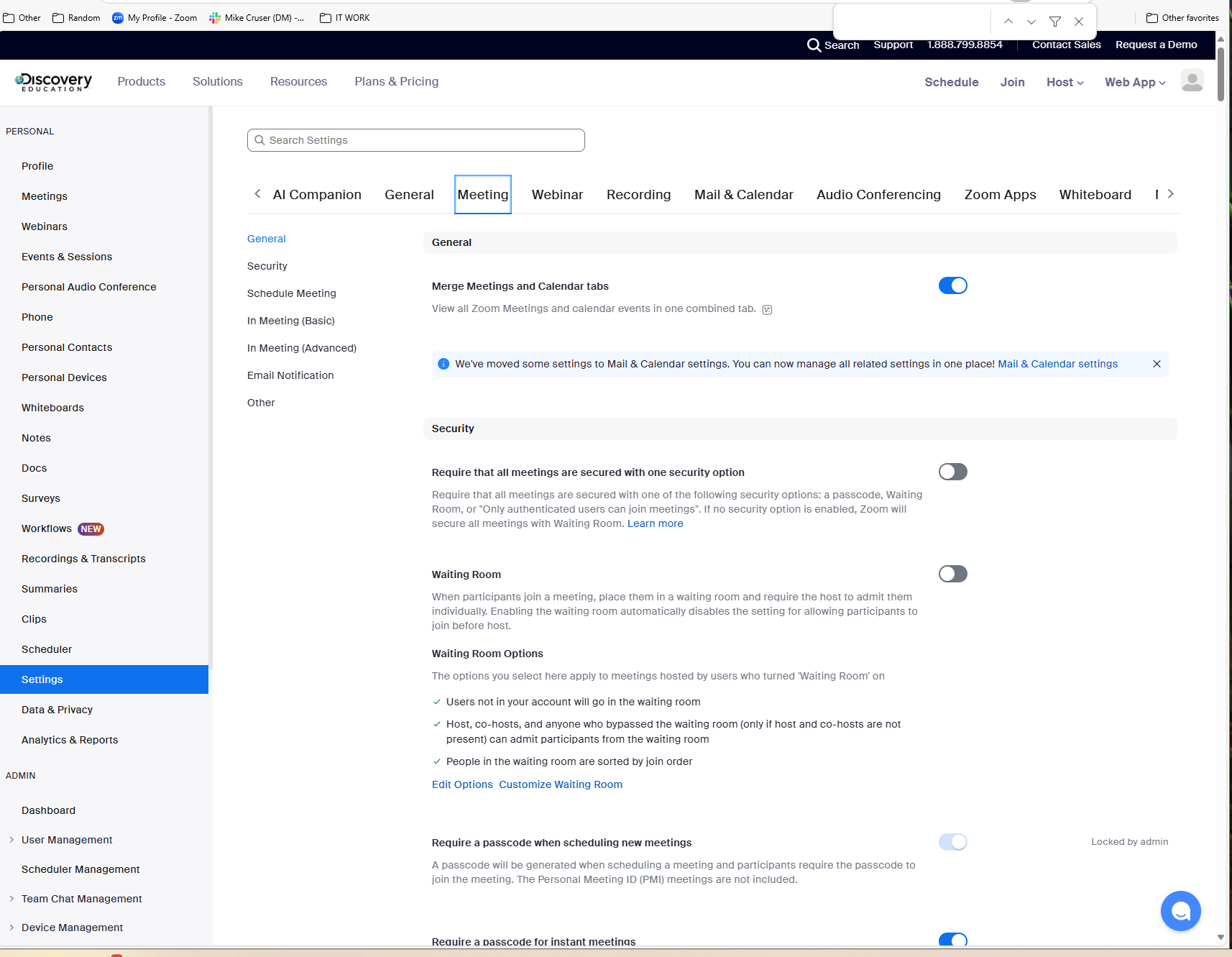
You can find the Settings tab in the main dialog box or in the meeting menu bar. After clicking Settings, you will have the following options:
In Zoom Application
In discoveryed.zoom.us
- General: You can select default preferences
- Audio: You can test, select and adjust your speakers, and microphone
- Video: You can test and select your video camera
- Feedback: We welcome any questions, comments, or feedback. All Feedback goes to Zoom.US support.
- Recording: Here you can browse/open your stored recordings (all recordings are stored on your local device/computer)
Zoom Outlook Plugin
The Zoom plugin for Outlook is installed automatically with your Outlook app. You should see the Zoom button when you schedule a meeting on the calendar:

Checking for Zoom app updates:
Mac
- Sign into the Zoom desktop client.
- Click the Zoom.us menu
- Select Check for updates
- Run update and relaunch your Zoom client.
Windows
- Sign into Zoom desktop client.
- Click your profile picture then select Check for updates
- If there is a newer version, Zoom will download and install it.